

Network requests
Meticulous can check whether a pull request introduces a regression in terms of network traffic. A change that makes your application chattier — an accidental N+1, a dropped cache, a component refetching on every render — often produces no visual difference at all: the page looks identical while quietly issuing far more traffic. When network traffic grows past a threshold, Meticulous can block the pull request until the author reviews the per-endpoint breakdown and acknowledges the change. This catches performance regressions that are invisible to visual testing but can increase backend load, infrastructure costs, and latency for users.
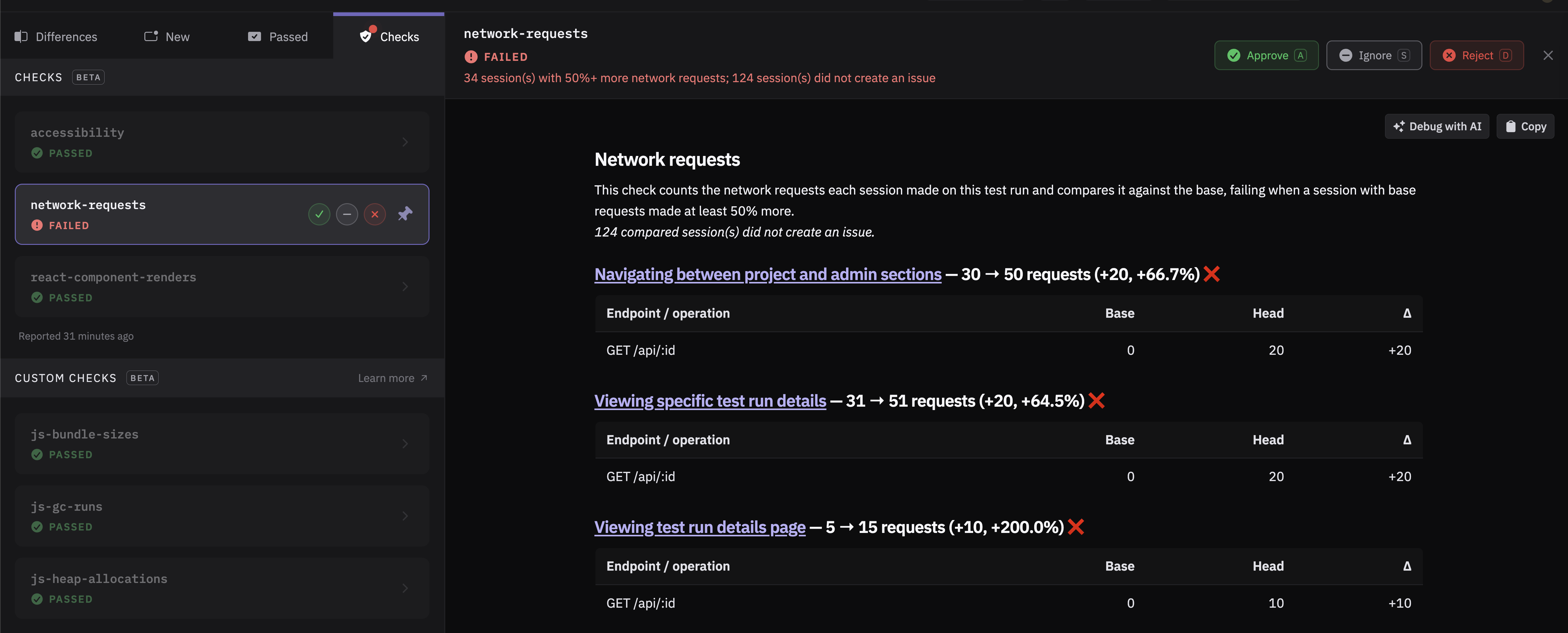
When does the check fail?
If Meticulous finds a user flow that issues at least 20% more requests than on base, it marks the network requests status check as failed on the pull request, requiring the author to acknowledge the result in Meticulous before the pull request can proceed. In case Meticulous finds a user flow that issues at least 10% more requests than base, that is reported as an informational warning that leaves the check passing. Both thresholds can be configured on Settings → Checks.
Which requests are counted?
Every fetch and XHR request the app issues during replay counts, except traffic to known telemetry and third-party hosts — analytics, error tracking, fonts (Segment, PostHog, Sentry, Datadog, Google Analytics, Google Fonts, and similar). Those are excluded so that an extra analytics beacon can never flag your pull request; requests to your own backend always count. The list of ignored hosts can be customised on Settings → Checks.
Does the check block merging?
The network requests check is blocking by default, but it can be configured to never block pull requests. You can change this yourself on Settings → Checks, no Meticulous admin needed.
How can network traffic testing be enabled?
Reach out to the Meticulous team at support@meticulous.ai and we'll turn it on for your project. The check can optionally be enabled for a subset of users rather than the entire team.